Getting started
Install on macOS
Install Sajilo on a Mac and allow it past Gatekeeper, the one-time warning for apps from outside the App Store.
Sajilo runs on Macs with Apple Silicon (M1 and newer) and on Intel Macs. Pick the matching download: if you’re not sure, open → About This Mac and look at Chip or Processor.
Beta builds are not signed with an Apple certificate yet, so macOS asks you to confirm the app the first time. You do this once per update.
Install
- Download Sajilo for your Mac from the download section and open the
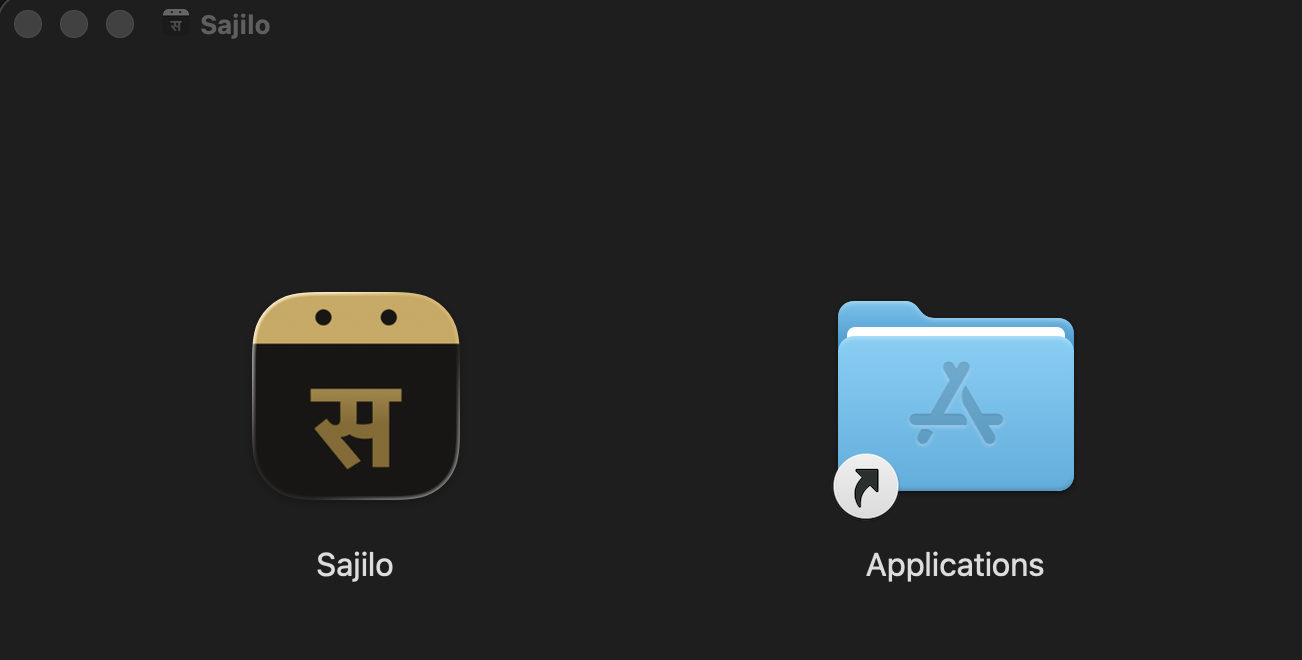
.dmg. - Drag Sajilo onto the Applications shortcut.
Allow it the first time
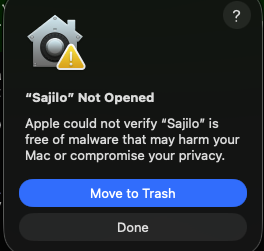
- Open Sajilo from Applications, Launchpad or Spotlight. macOS says “Sajilo” Not Opened. Click Done, not Move to Trash.
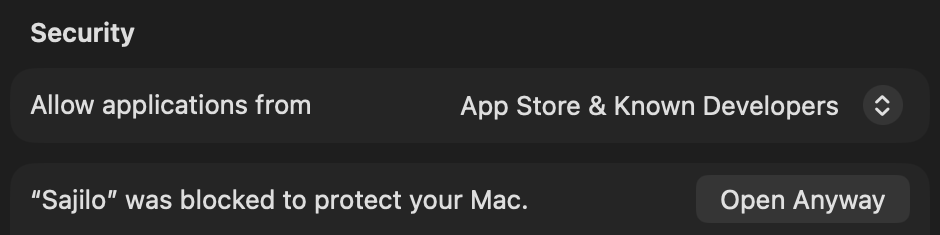
- Open System Settings → Privacy & Security and scroll down to Security. Next to “Sajilo” was blocked to protect your Mac, click Open Anyway.
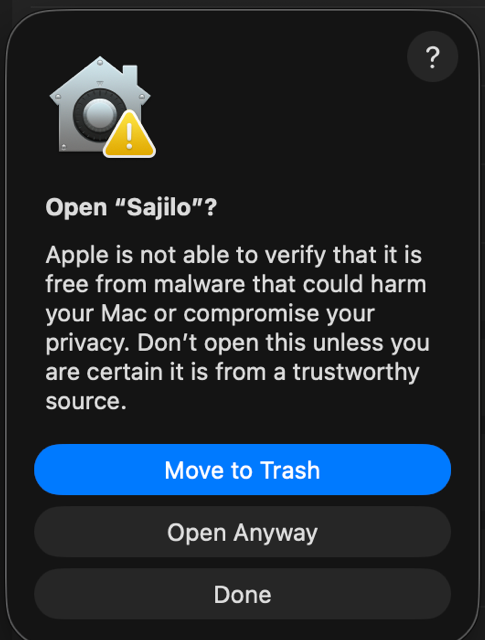
- Confirm Open Anyway once more, then use Touch ID or your password.
When it’s installed
Sajilo lives in the menu bar at the top of the screen, showing today’s Nepali date. Click the date to open it.
It starts with your Mac from now on; you can turn that off in Settings › Display › Startup › Launch at login. Sajilo has no Dock icon by default, because it’s a menu-bar app; you can show one with Settings › Display › Startup › Show Dock icon.
Next: what’s where in Sajilo.
Still stuck? Tell us, or write to contact@sajilo.fyi.